ClawStage User Guide
Hello!
Welcome to ClawStage!
This help guide will walk you through the basics and help you get started with ClawStage. ClawStage is a Raspberry Pi-based desktop AI companion powered by the OpenClaw. It can perceive its surroundings, remember important information, interact with you through voice, and control compatible smart home devices. You can also create a custom personality and configure a large language model, turning ClawStage into a companion that fits naturally into your everyday life.
If you have any questions, browse this guide at any time to find the information you need.
Activate
ClawStage
01.
Download ClawStage app
Search for ClawStage in the App Store and download the app. Then, connect ClawStage to a power source.
02.
Create HooRii account
Open the ClawStage app and create an account. During registration, enter the 4-digit invitation code included in the email from HooRii.
03.
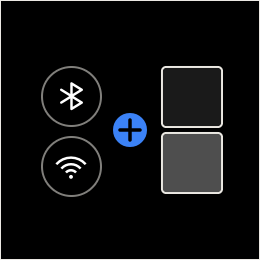
Bind ClawStage
Open the ClawStage app and tap Add ClawStage. Then scan the QR code displayed on the device screen.
04.
Successfully connected
Follow the instructions in the app to complete Wi-Fi setup and device initialization. Once setup is complete, ClawStage will enter standby mode.
Device
Control
Settings
Tap the menu button in the top-left corner of the app, then select Settings. From here, you can change your nickname and password. You can also choose the language used when talking with AI and set your location. Location information helps ClawStage provide more relevant context during conversations, such as when you ask about the weather.
Device Info
Tap the menu button in the top-left corner of the app, then tap the ClawStage card to open the device information page. Here, you can view details about your device, including Wi-Fi information, the device name, and available storage. You can also drag the volume slider to adjust ClawStage's volume.
OTA
On the device information page, tap Firmware Update. The app will automatically check the current firmware status of your ClawStage. If a new version is available, follow the instructions to complete the firmware update.
Privacy Button
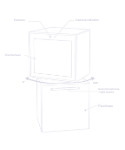
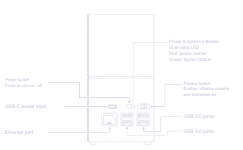
The privacy button is located on the back of ClawStage. When the privacy button is turned on, the camera and microphone are physically disconnected to help protect your privacy. Turn the button off to restore camera and microphone functionality.
Unbind
Before unbinding your device, make sure your phone and ClawStage are nearby and that ClawStage remains powered on. Open the device information card, scroll to the bottom of the page, and tap Unbind. Then follow the on-screen instructions to complete the process.
Shutdown
Press the power button on the back of ClawStage once. When the menu appears on the screen, tap Shutdown to safely turn off ClawStage.
AI
Conversation
You can talk to ClawStage in several ways:

01.
Touch
Start a conversation: Tap Talk to HooRii on the ClawStage screen.
End a conversation: Tap the End button on the screen to exit the current conversation.
Mute or unmute: Tap the button on the left side of the ClawStage screen to toggle mute.

02.
Voice
Wake up ClawStage: Say the wake word, "Hey Miko".
End a conversation: Say the exit phrase, "Goodbye".

03.
Text
On your phone, you can use the ClawStage app to send text messages, images, and files to the AI.
Plan and
Credits

ClawStage's AI services use credits. You can subscribe to a plan to receive additional credits. Three plans are currently available: Starter, Standard, and Pro. Each plan includes a different amount of credits.
Tap the menu button in the top-left corner of the app, then select Plan & Credits to open the subscription page and choose the plan that best suits your needs.
Credit Types
Each account can receive the following types of credits:
Free Credits:
You receive 3,000 permanent credits when you register an account. These credits never expire.
Daily Credits:
Earn up to 100 credits a day. The total is capped at 2,000.
Monthly Credits:
These credits are issued every month after you subscribe to the Plan service. Unused credits can roll over to the following month.
Top-Up Credits:
Credits purchased as a one-time purchase through Kickstarter. These credits never expire.
Credits are used in the following order: Daily → Monthly → Free → Top-Up
View Your Credit History
You can view your current credit balance, as well as your credit earnings and spending history, on the Credits page.
Tap the menu button in the top-left corner of the app, select Plan & Credits, and then open the Credits tab.
BYOK -
Bring Your Own Key
BYOK mode allows you to use your own AI services without using your ClawStage Credits.
To configure a BYOK service, tap the menu button in the top-left corner of the app, select Plan & Credits, and open the subscription page. Then, find the BYOK section and configure the service you want to use.
Supported Services
LLM
You can configure a local Ollama instance, as well as services such as OpenAI, Google Gemini, and DeepSeek. To configure additional LLM services, go to the OpenClaw admin panel.
ASR
You can currently configure your own Deepgram service. This service runs in the cloud.
TTS
You can currently configure your own ElevenLabs service. This service runs in the cloud.
Guided setup is provided for each component. Once your services are configured, AI conversations in the app and on ClawStage will use your configured services first. If BYOK is turned off or a service has not been configured, ClawStage will use its default AI services and deduct the corresponding number of Credits.
Workshop &
Characters
Workshop is HooRii's character community platform.
In Workshop, you can create, preview, and manage your own characters.
Create a Character
Use a text description to define your character's gender, background, talking vibe, MBTI type, and appearance. You can also upload a reference image to create a character of your own.
For voice options, Workshop currently supports multiple voices across 12 languages.
Preview a Character
You can have a preview conversation with a character in Workshop to see how it behaves. If you like the character, download it and use it with ClawStage.
Use a Character
Tap the menu button in the top-left corner of the app, then select Characters to open the list of available characters.
Before using a character, you need to download its resource package. Once the download is complete, activate the character to start using it on ClawStage.
Creating characters in Workshop consumes Credits only. BYOK is currently not supported as a way to offset these charges.
workshop.hoorii.io >OpenClaw

ClawStage comes with OpenClaw built in. To access OpenClaw, connect your phone or computer to the same network as ClawStage, then use the device's IP address.
Find the IP Address
In the ClawStage app, tap the menu button in the top-left corner, then tap the ClawStage device card. On the device information page, find the OpenClaw section to view the service IP address.
Through the WebUI
Enter the OpenClaw IP address in your browser and open the address to access the OpenClaw WebUI.
Through a Terminal
Enter the OpenClaw IP address in your terminal, then sign in when prompted.
Ssh pi@your ip
Username: XX
Password: XX
Home
Assistant
ClawStage comes with Home Assistant built in. To access the Home Assistant dashboard, connect your phone or computer to the same network as ClawStage, then use the device's IP address.
Find the IP Address
In the ClawStage app, tap the menu button in the top-left corner, then tap the ClawStage device card. On the device information page, find the Home Assistant section to view the service IP address.
Access the Dashboard
Enter the Home Assistant IP address in your browser and open the address to access the Home Assistant dashboard.
Hardware
Overview